This guide walks you through setting up Cowork from scratch and introduces the features that make it more useful than standard chat — file access, connected apps, skills, projects, and scheduled tasks. By the end, you'll have Cowork configured and ready for real work.
💡 Tip
It's easiest to follow along if you've already downloaded the Claude desktop app. Cowork requires a Pro plan or higher.
Why Cowork is useful
Cowork is, in my opinion, the most powerful option for any non-coder who wants Claude to provide serious leverage in their job. It lives in a tab in the Claude desktop app. What essentially makes Cowork different from normal chat is that it can access files on your computer: it can read, edit, and create files. I like to think of it as an intern who can take independent actions. You can hand work off to it, step away from your computer, and come back to a completed task. You connect a folder, describe the outcome you want, and Claude plans the work, executes step by step, and saves files (Excel workbooks with working formulas, formatted Word docs, PowerPoint decks, etc.) into that folder.
If you connect your apps to Cowork, Claude can open and operate them too. I have Notion, Google Docs, Gmail, Chrome, and Todoist, among others, all set up with Cowork. I work with all those apps directly from Cowork itself, rather than flipping back and forth between the apps. It's a huge productivity unlock.
Cowork is also the best place to house projects, skills, and scheduled tasks — basically, anything that touches on being agentic.
👉 Example
You hand Cowork a folder of 50 customer interview transcripts and ask for every mention of pricing concerns, organized into a structured report. The progress view shows it reading transcripts in batches, building the report section by section. Fifteen minutes later there's a finished document in your folder or Google Drive.
Let's set up Cowork
Setup is incredibly easy: install the desktop app, open the Cowork tab, connect one folder. You'll need a paid plan. Here's the full sequence.
- Install the Claude desktop app. Download it from claude.com/download for Mac or Windows and sign in with your Claude account.
- Open the Cowork tab. In the desktop app's left sidebar, you'll see a mode selector. Click Cowork to switch out of the standard chat view.
- Connect a folder. Cowork will prompt you to add a folder from your computer. Claude gets read and write access to that folder only — not your whole drive. Start with a single project folder, not Documents. This is where Claude will save any work it creates.
💡 Tip
You can also ask Claude to save work to apps like Notion or Google Drive. We'll set that up in the next section.
- Review the permission prompts. On first run, Cowork asks for permission to work with files in your connected folder. Read these — they're short — and approve. Optional features like computer control come with their own separate prompts later; you don't need them to start.
- Give it a real task and keep the app open. Cowork needs the desktop app running and an internet connection while it works. All your files stay on your computer, but the thinking happens on Anthropic's servers.
A tour of the Cowork interface
Cowork looks a lot like chat, but with two additional capabilities in the left-hand sidebar — Scheduled and Dispatch. The core layout is still a chat conversation — you type requests, Claude responds — but, unlike chat, there's a working environment behind it.
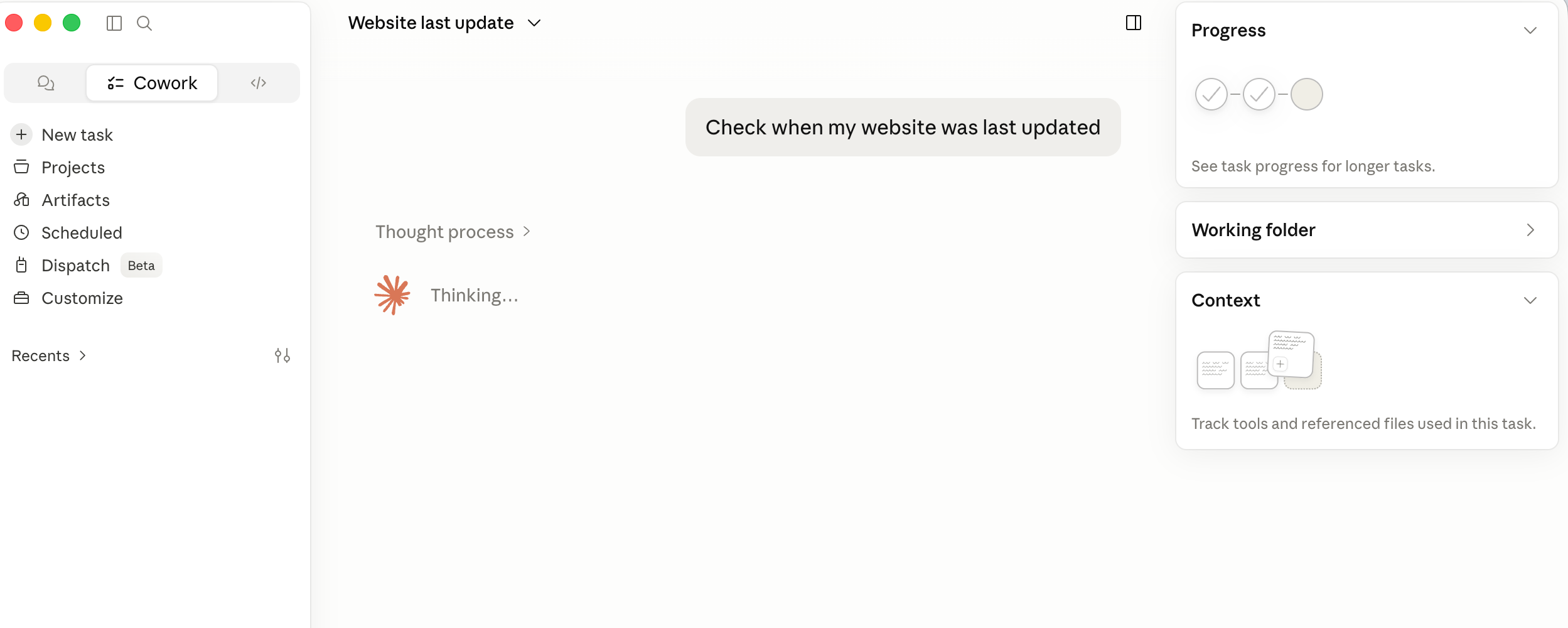
The task input works like any chat box. Instead of a question, try giving it an outcome you want: "Turn these notes into a client proposal using the template in this folder."
The progress view appears in the sidebar once Claude starts working on your task. Cowork breaks your request into steps and checks them off as it goes.
Connected folders (working folder, context) are listed below the progress bar. What you see there is what Claude can see. Files Claude creates land in your connected folder as ordinary files — open them in Excel or Word as usual, no exporting required.
Permission prompts appear in the conversation when Claude wants to do something beyond reading and writing in your folder. Default behavior is ask-first; review what it plans before approving.
💡 Tip
If you're not sure what a permission prompt is asking for, screenshot it and ask Claude to explain it in a different chat.
The Live artifacts tab in the sidebar collects interactive outputs — dashboards, trackers, views of documents you've created, and so on.
Connect your tools
If you connect your apps to Cowork, Claude can interact with them basically the same way you do. For example, Claude can read your calendar and create calendar events; Claude can create, edit, and delete documents in Notion. This means you can work in these apps without leaving the Claude interface. It also means Claude can access the content of these apps to use as context when needed.
Once you've connected Cowork, click on Customize in the left menu. Then select Connect your apps and search for any apps you use regularly. Click Connect and follow the steps to hook them up to Claude. Within each connection, you can control granular permissions — for example, you could have Claude read your calendar but not create events in it.
Skills, projects, artifacts, and scheduled tasks
Within Cowork, using skills, projects, artifacts, and scheduled tasks gives you huge productivity gains. (Dispatch isn't relevant for most knowledge workers, so this guide skips it.) Each has its own article, but here's a quick overview:
| Concept | What it is | Use it when |
|---|---|---|
| Skills | Saved instructions that teach Claude a repeatable workflow. | You do the same kind of task or create the same type of output often, and you can write down the instructions for how to do it. |
| Projects | A workspace that groups related tasks with its own files, instructions, and memory. | For anything ongoing, where memory, context, and specific files are useful. If you'd call it a project in the real world, it's a project here too. |
| Artifacts | Live outputs — dashboards, trackers, mini-apps — that pull fresh data from your files and connected apps each time you open them. | You'll check the same chart or tracker again tomorrow and the numbers underneath keep changing. |
| Scheduled tasks | Work that runs on a cadence — hourly, daily, weekly — while the desktop app is open. | Anything you do on repeat, on a regular cadence. Perfect for briefings, summaries, digests, and email management. |
In short: skills capture how you want something done, projects capture context, artifacts capture a view you revisit, and scheduled tasks capture timing. ChatGPT users tend to under-use these at first because chat habits run deep — every task starts from a blank window, every time. Breaking that habit is most of the value.
👉 Example
You run a weekly pipeline review. Without these features, every Monday you re-upload the spreadsheet, re-explain your stages, and re-ask for the same analysis. With them: a project holds your pipeline context and definitions, a skill encodes how you like the analysis formatted, an artifact shows current pipeline status whenever you open it, and a scheduled task refreshes the analysis Monday at 8am — before you've sat down.
💡 Tip
Scheduled tasks only run while your computer is awake and the desktop app is open. A missed run executes when you next open the app — fine for a morning briefing, worth knowing before you rely on one for anything time-critical.
What could go wrong
Four things to know before you lean on Cowork for real work.
Cowork burns usage faster than Chat. Multi-step tasks take more compute, so they draw down your plan's usage allowance quicker. Anthropic's own guidance: use Chat for simple tasks and save Cowork for work that needs file access. If you hit limits mid-month, this is the first place to look.
Claude can delete files in connected folders. Read and write access includes the power to overwrite and remove. Connect folders you trust it with, keep copies of anything irreplaceable, and don't connect folders holding sensitive material — financial records, passwords, health documents. You can use permissions to make sure Claude asks before taking any actions.
Ask-first mode exists for a reason. Cowork can run in a mode that acts without asking, and it's tempting to switch it on for speed. Leave it off while you're learning. Reviewing the plan before Claude acts is your main protection against it doing something you didn't intend — including cases where a malicious webpage or email tries to inject instructions.
Your data is processed in the cloud. Files stay on your machine and code runs in an isolated environment locally, but the model itself runs on Anthropic's servers — same as ChatGPT. If your work has confidentiality requirements or PII, talk to your legal or IT team before using.
What you've learned
Cowork is set up and you know the core features — file access, app connections, skills, projects, artifacts, and scheduled tasks. The key shift from chat: Cowork works on your behalf, step by step, while you do something else. That's what makes it genuinely useful for real work.
📋 Try it this week
Pick one folder of real work — receipts, notes, transcripts, drafts — make a copy, connect it to Cowork, and ask for one finished deliverable from it. One task, one folder, one file out the other end. That single session will teach you more about the Chat/Cowork split than any guide.